Showing posts with label Windows. Show all posts

Wednesday, 3 August 2016

Unknown

Create 10000+ Folders At One Click

Following steps to create 10000+ Folders At One Click...

1) Open notepad or any text editor

2) Then copy and paste following text

@echo off
:top
md %random%
goto top

3) Save it as anything.bat 

4) Then click on anything.bat and see the magic

ctrl+c - to interrupt the process

Warning: try it inside any blank folder ... otherwise your drive will gets flooded...
Read More

Friday, 8 March 2013

Unknown

Windows Task Manager Has Been Disabled, How to Fix It ?

Many times working online you come across a stage when your computer gets infected with some kind of virus or malware, well that might nor affect anything but your task manager and disable it up, so what you are going to do at that time. Well I have found some easy solutions to get your task manager back working again.
So now normally to open a Task Manager, you normally do one of the following things :
  • Press Ctrl + Alt + Del on the keyboard
  • Press Ctrl + Shift + Esc on the keyboard
  • Right-click on a blank area on the start bar and choose Task Manager
  • Click on Start, Run and type TASKMGR in the run box and press Enter
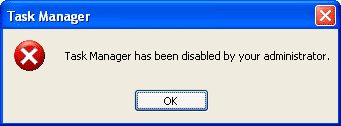
task manager disabled
Sometimes instead of Task Manager opening you'll see the following screen. In these cases, you'll have to follow the methods below to re-enable access to the Task Manager. First we'll begin with the various registry modification methods for correcting this problem.


Method 1 - Using the Group Policy Editor in Windows XP Professional

  1. Click Start –> Run, type gpedit.msc and click OK.
  2. Under User Configuration, Click on the plus (+) next to Administrative Templates.
  3. Click on the plus (+) next to System, then click on Ctrl+Alt+Delete Options
    Find Remove Task Manager in the right-hand pane and double click on it
    Choose the option "Not Configured" and click Ok.
  4. Close the Group Policy Window

Method 2: Change the Task Manager Option through the Run line

  1. Click on Start –> Run and type the below command exactly & press Enter.
REG add HKCU\Software\Microsoft\Windows\CurrentVersion\Policies\System /v DisableTaskMgr /t REG_DWORD /d 0 /f

Method 3: Change Task Manager through a Registry REG file

  1. Click on Start –> Run, and type Notepad and press Enter.
  2. Copy and paste the information between the dotted lines into Notepad and save it to your desktop as taskmanager.reg

    Windows Registry Editor Version 5.00
    [HKEY_CURRENT_USER\Software\Microsoft\Windows\CurrentVersion\Policies\System]
    "DisableTaskMgr"=dword:00000000
  3. Double click on the taskmanager.reg file to enter the information into your Windows registry files.

Method 4: Delete the restriction in the registry manually

  1. Click on Start –> Run, and type regedit and press Enter.
  2. Navigate to the following branch HKEY_CURRENT_USER –> Software –> Microsoft –> Windows –> CurrentVersion –> Policie –> System.
  3. In the right pane, find and delete the value named DisableTaskMgr
  4. Close the registry editor

Method 5: Download and Run FixTaskManager program

  1. Download TaskManagerFix.exe File.
  2. Extract the file from the .zip archive.
  3. Double-click on the file FixTaskManager on your desktop and run it.
  4. That's it it will automatically add registry tweaks and activate you task manager.
Read More

Wednesday, 3 October 2012

Unknown

Run Registry Editor From Guest Account Even If It Is Blocked

Registry editor is well known registration directory where windows keep all the records of their setting files. Keeping it inaccessible from other users is extremely necessary in the point of view of security of data and information. Wherever you are, public cyber cafes, Library, College labs, etc you’ll see that you cannot access the heart utilities like Registry Editor.

The Regedit.exe is only the executable file to list up registries in systematically. You can arrange the registry’s easily by your own if you are a good programmer. But who is talking about programming here? I am talking about the program which is alternative for registry editor, RegAlyzer. This works exactly similar to Windows’ registry editor, only the difference is it’s name and it’s third-party.

This tool might be great help if you want to have instant hack to public computers and networks.

You can easily Download RegAlyzer

Hope you liked this...
Read More

Wednesday, 26 September 2012

Unknown

How To Hide Any Drive Through GPEDIT

Have you ever thought of hiding any drive from your system so that no one can knew about it. You may have heard or even used a lot of software’s that might be able to do that, but if you want to do things by your own without using any 3rd party software than this tutorial will show you how you can do it.

Well there are 3 ways of doing it, in this tutorial we are covering GPEDIT way of doing it.

Here is how to do it:


Step 1: Open Group Policy Editor (Press Win+R and type Gpedit.msc and press Enter)


gpedit Learn Windows tweaking with Gpedit and Regedit   Part 1


Step 2: Navigate to User Configuration > Administrative Templates > Windows Component > Windows Explorer 

Step 3: Now on the right Hand side i.e Settings Pane look for Hide these specified drives in My Computer.

Step 4. Double Click on it and Enable it, now choose from the drop down box which drive you want to hide (I choose All – Restrict All Drives)

Step 5. Now click on Apply and click OK, now you can see that Hide these specified drives in My Computer is Enabled.

enabled gpedit

Step 6. Now logoff and login back to see changes.

How to revert back:

In order to get them back go to Gpedit and set the Hide these specified drives in My Computer setting to Disable. 

That’s it...
Read More

Sunday, 16 September 2012

Unknown

How To Hide Any Drive Through Command Prompt

Have you ever thought of hiding any drive from your system so that no one can knew about it. You may have heard or even used a lot of software’s that might be able to do that, but if you want to do things by your own without using any 3rd party software than this tutorial will show you how you can do it.

Well there are 3 ways of doing it, in this tutorial we are covering command prompt way of doing it.

Here is how to do it:

Step 1. Open command Prompt, go to Start Menu > All Programs >Accessories > Command prompt
 Step 2. In the Command Prompt, type Diskpart and hit enter key. If UAC (User Account Control), dialog-box prompts than click Yes.

Step 3.
Then type List Volume and press enter, this will produce the list of all drives.


Step 4. Now select the drive which you want to hide, you can either do this by typing Select Volume 1 (i.e. Volume Number) or by typing Select Volume C(i.e. Drive letter) 


Step 5. To hide a drive, type Remove Letter C. Here, C is the drive letter than you want to hide. You can use any drive letter you want.


Step 6. That’s it. You are done! C drive is now hidden


How to unhide hidden drive:

Step 1. Follow the procedure mentioned in step 1, 2, 3 and 4.

Step 2. To show the hidden drive type Assign Letter C and hit enter, now you can view C: drive in explorer.


That’s it. This is one way of hiding and un-hiding drives from Command Prompt.
Read More

Thursday, 13 September 2012

Unknown

How To Hack Windows Password

There are many ways to break windows passwords, I will show you how do do it with Cain & Abel v2.0. It is powerful hacking tool which can break of various kind of passwords using Dictionary, Brute-Force, Cryptanalysis attacks … This tutorial tells you how to break administrator password and gain access to admin account with Brute-Force attack.
Just follow steps below.

1) Download Cain & Abel v2.0 from this Link and install it.

2)Start Cain

3)Click on Cracker tab , on the left choose LM & NTLM Hashes and click on + sign icon on toolbar then Dump NT Hashes from Local machine.


4)Next


5)After this will appear windows accounts , right click on account you want to break password and choose type of attack , in this example I chose brute force attack. Brute force actually means to start with a letter a and encrypting it. Then see if the encrypted strings match. If not then b, c, … until we’ve gotten to admin. Then the encrypted strings will match and we’ll know that is the right password. Brute force attack is the slowest method of cracking, but there is no risk that you’ll not find the password. The thing about brute force is that the time of cracking rises rapidly depending on how long the password is, how many characters are being used in it and so forth.


I hope this tutorial has helped, if something isn´t clear , don’t be afraid to ask questions to me!
Read More