Wednesday, 5 September 2012

Unknown

Play with any Webpage using Katamari Hack Bookmarklet

Katamari Hack is an awesome JavaScript bookmarklet created by KatHack delivering an amazing ball rotating playing experience with destroying websites text and other stuff using CSS and similar properties. It uses the depth and other options and create realistic destruction. Activating Katamari is really easy using their small bookmark which when clicked starts the game on the go on any webpage.


So now above screenshot explains everything what I am talking about. So now you can easy start exploring this hack by clicking this Katamari Link and demoing on this website and you can also drag this link to your bookmarks bar and use it on any website. Below is the JavaScript used for activating this hack.
javascript:var i,s,ss=['http://kathack.com/js/kh.js','http://ajax.googleapis.com/ajax/libs/jquery/1.5.1/jquery.min.js'];for(i=0;i!=ss.length;i++){s=document.createElement('script');s.src=ss[i];document.body.appendChild(s);}void(0);
After you click on the JavaScript link a popup will ask you some settings to tweak like how you want to move the ball with left click and drag or right click and drag and similar stuff you can choose all the options that suit you and click on start.
Read More

Sunday, 2 September 2012

Unknown

Who Will Win the Web Browser Battle: Google Chrome Vs FireFox


It’s always been a subject of heated discussion when it comes to the battle of the browsers: which is the best web browser amongst them . Internet explorer is trailing way behind in this race and new survey stats denote that the Internet Explorer market falls below 40% percent, and although IE still maintains first place with 40.9% percent and has completed its 16 year reign amongst the race of its competitor Web Browsers.

Firefox comes in second place with a 26% percent market share and in third place Google Chrome is running alongside with 23% percent; so there is only a marginal 3% percent difference between FireFox and Google Chrome.

Courtesy : Wikipedia

Users are continually switching from Firefox to Google Chrome in droves, and the reasons are many and varied behind this. Chrome seems to be the better and faster browser among all browsers, and along with its lightning fast speed- it offers more stability, privacy, number of games and extensions which make Google chrome one of the fastest growing browsers competing in this race.

Recently, Firefox launched its 5.0 version which disappointed many users due to its lack of speed in comparison to its previous versions, however when compared to other browsers developers said that it’s 20 times faster than its predecessor , albeit FireFox 5 is not doing well as its developer team had hoped it would have done nor hoped for that matter.

Here at STG we’ve always pondered as to what makes Google Chrome the fastest browser between the competition of preceding browsers , gives it its upper edge within the development community, and why users are constantly switching over to it. Thus, we conducted a detailed comparative study into Google Chrome features and compared it to the mighty Firefox and have concluded that Google Chrome is indeed the conquering champion amongst all other browsers and definitely deserves the laurel leaf over all other competitor browsers !

1. Speed: Faster Load Time

A survey conducted by Chrome developers shows that it takes only 8 seconds for Google Chrome when loading more than 15 fully working tabs, which shows how much quicker this browser loads while opening a new tab. Chrome uses webkit (webkit uses memory more efficiently, and it is easily embedded towards adapted devices) open source rendering engine which allows Chrome to load web pages more faster and more efficiently within the blink of an eye.

Google Chrome runs web applications faster than any other web browser because it uses faster and more effective V8 (java script virtual machine) Engine. V8 looks for the java script source code and generates a machine code that can run directly on the CPU that is running the browser, which enables web applications to load faster.

Chrome allows users a more effective search and navigation, a user can search and navigate both in the same address bar which is known as Omnibox, which allows them to search and type url address in that same box. Users can enable the instant feature which allows them to see the search result and the web addresses before they press enter; all one must do to incite these features is to follow these steps.

Go to options > click on Basis Check Search and click on Enable Instant Feature.
Though Firefox stats depict that its browser incorporates more effective JagerMonkey Java Script Engine , which allows faster start up times, rapid graphics rendering and improved page load speed, it also integrates compartments and more efficiently manages JavaScript objects to supporting ECMAScript5.

But most Chrome and FireFox users ( who have stepped onto the side of the Chrome Force ) agree that Chrome is much faster than the Firefox.

2. Security

Chrome uses sandboxing technique which helps it within preventing malware applications from installing themselves on a user’s computer; Sandbox uses an additional security layer of protection which protects against malicious web browsers. Chrome also gives a warning message to its user if they are about to visit a malware affected site.

On the opposing side of the fence , Firefox is doing extremely well within its security region with Instant Website ID, Private Browsing Anti-Phishing and customized security settings ; where users are able to customize settings for password and cookies. There are quite several security features which make Firefox an overall good Browser at its core, however some of these security features can be rather conflicting and somewhat difficult for the inexperienced user.

The simple and minimalistic usage along with its sandboxing technique makes Google Chrome somewhat better within its security region.

3. Privacy: Incognito Mode & Better Phishing

Google Chrome incorporates Incognito Mode, which allows users to omit their web browsing history and cookies automatically if they don’t wish to keep them on their computer after browsing. When surfing in incognito mode Chrome will delete any cookies created while browsing, once a user closes the incognito window. Respectively, Firefox also offers private browsing which allows users in browsing the internet an incognito mode, however simple and easy use of privacy features put Google Chrome somewhat farther ahead of Firefox.

4. More Stability

Stability is one of Google Chrome’s verities within making it more stable than other existing browsers and it doesn’t suffer as many crashes in comparison to other browsers. According to Chrome, when a user is writing their important emails or editing a document and it suffers a crash, one can lose their all of their work.

Chrome developers have diligently worked on this browser shortcoming, by making Chrome more stable than any other browser . Chrome doesnt suffer as many crashes when compared to other browsers such as Firefox, and despite the fact that it may suffer a crash at certain intervals , once it is re-launched it opens in restoration Mode, granting the user the option in re-opening prior tabs as well as its ability to load WebPages faster than any other browser.

Firefox often suffers crashes , and despite Mozilla possessing a session restore, which renders a users data again while they are writing emails or editing documents and while retrieving the web pages back, it’s page load of prior WebPages is quite slow in comparison to Chrome.

5. Entertainment: Most Popular Games

On the entertainment front , the Google Chrome Web Store provides some of the most entertaining and popular games over its competitors; Users can play Angry Birds which has quickly become one of the most popular online games since its inception.

Games are another reason in users switching to Chrome, although when it comes to Add-Ons , Firefox is somewhat ahead over Google Chrome because users are afforded a wide variety of such Add-On downloads daily. However, developers of Google Chrome also provide a vast array of Web Developing Tools which enable Designers and Developers alike within their web related projects.

6. Memory Consumption

When comparing memory consumption , the truth of the matter is that Firefox consumes more memory than Google Chrome does, as well as Firefox takes more time in releasing its memory resources, while Chrome with 10 active web pages along with 10 active tabs consumes around 230 mb and where Firefox took 130 mb for 10 tabs, by quickly closing the tabs Google chrome dropped to 20 mb while Firefox went back by only 96 mb which shows that FireFox consumes more memory over Google Chrome.

Conclusion :-

Since the inception of Google Chrome and its web emergence, it has been dominating the web browser world rapidly and ascending the ladder towards success. Google Chrome is gaining the attention and allegiance of most users now , while steadily maintaining a 23% percent market share in third place; and no wonder, predictably, it will ultimately end up usurping Firefox in the end as the Browser of Choice ( for users and developers alike ) ; Firefox is trailing behind due to its lack of speed and stability, and it is losing most of its users on rather rapidly.

If Firefox wants to remain and survive in this race of Best Browser , it will need to improve its overall slow speed and memory consumption. Google Chrome is gaining a user base amongst users through its savvy features as well as its new games and Developer Tools which serve very useful for developers and designers alike.
Read More

Thursday, 30 August 2012

Unknown

History of Popular Microsoft Windows Operating Systems

The first ever operating system introduced by Microsoft was Windows and released at 20 November, 1985. This operating system was in MS-DOS format and Microsoft started to dominate market with this operating system. Although there was another operating system name MAC OS which released at 1984 but couldn’t able to beat Microsoft.  Microsoft Windows Operating Systems still dominating the market worldwide.
Since 1985, Microsoft started to develop their Operating Systems for different purposes like Server, Personal and Mobile. The most successful  Microsoft Windows Operating Systems for Personal users are :
  1. Windows 95
  2. Windows 98
  3. Windows XP
  4. Windows Seven

Microsoft Windows Operating Systems – 95

Microsoft Windows Operating Systems
Windows 95 was released in August 1995 featuring a new user interface, support for long file names of up to 255 characters, and the ability to automatically detect and configure installed hardware (plug and play). It could natively run 32-bit applications, and featured several technological improvements that increased its stability over Windows 3.1. There were several OEM Service Releases (OSR) of Windows 95, each of which was roughly equivalent to a service pack.
System requirements for installing Windows 95:
i. Personal computer with a 386DX or higher processor (486 recommended)
ii. 4 megabytes (MB) of memory (8 MB recommended)
iii. Typical hard disk space required to upgrade to Windows 95: 35-40 MB The actual requirement varies depending on the features you choose to install.
iv. Typical hard disk space required to install Windows 95 on a clean system: 50-55 MB The actual requirement varies depending on the features you choose to install.
v. One 3.5-inch high-density floppy disk drive
vi. VGA or higher resolution (256-color SVGA recommended)

Microsoft Windows Operating Systems – 98

Microsoft Windows Operating Systems
Microsoft’s next release was Windows 98 in June 1998. Microsoft released a second version of Windows 98 in May 1999, named Windows 98 Second Edition (often shortened to Windows 98 SE).Windows 98 supports only FAT and FAT32 file system.
System requirements for installing Windows 98:
i. A personal computer with a 486DX 66 megahertz (MHz) or faster processor (Pentium central processing unit recommended).
ii. 16 megabytes (MB) of memory (24 MB recommended).
iii. A typical upgrade from Windows 95 requires approximately 195 MB of free hard disk space, but the hard disk space may range from between 120 MB and 295 MB, depending on your computer configuration and the options that you choose to install.
iv.  A full install of Windows 98 on a FAT16 drive requires 225 MB of free hard disk space, but may range from between 165 MB and 355 MB, depending on your computer configuration and that options that you choose to install.
v.  A full install of Windows 98 on a FAT32 drive requires 175 MB of free hard disk space, but may range from between 140 MB and 255 MB, depending on your computer configuration and the options that you choose to install.
vi. One 3.5-inch high-density floppy disk drive.
vii. VGA or higher resolution (16-bit or 24-bit color SVGA recommended).

Microsoft Windows Operating Systems : XP

Microsoft Windows Operating Systems
First released to computer manufacturers on August 24, 2001, it is the second most popular version of Windows, based on installed user base. The name “XP” is short for “eXPerience”, highlighting the enhanced user experience.
Windows XP was released worldwide for retail sale on October 25, 2001, and over 400 million copies were in use in January 2006.
Windows XP is a first GUI operating system that admired by worldwide users. NTFS file format is a another attraction of Windows XP.
Microsoft Windows XP comes in :
i. Windows XP Professional Edition
ii. Windows XP Home Edition
iii. Windows XP Media Center Edition
iv. Windows XP Tablet PC Edition
v. Windows XP 64-Bit Edition
System requirements for installing Windows XP Professional:
i. Pentium 233-megahertz (MHz) processor or faster (300 MHz is recommended)
ii. At least 64 megabytes (MB) of RAM (128 MB is recommended)
iii. At least 1.5 gigabytes (GB) of available space on the hard disk
iv. CD-ROM or DVD-ROM drive
v. Keyboard and a Microsoft Mouse or some other compatible pointing device
vi. Video adapter and monitor with Super VGA (800 x 600) or higher resolution
vii. Sound card
viii. Speakers or headphones

Microsoft Windows Operating Systems : SEVEN

Microsoft Windows Operating Systems
Windows 7 is the current release of Microsoft Windows, a series of operating systems produced by Microsoft for use on personal computers, including home and business desktops, laptops, netbooks, tablet PCs, and media center PCs. Windows 7 was released to manufacturing on July 22, 2009, and reached general retail availability worldwide on October 22, 2009.
Microsoft Windows 7 Comes in :
  1. Starter
  2. Home Basic
  3. Home Premium
  4. Professional
  5. Enterprise
  6. Ultimate
System requirements for installing Windows SEVEN:
Windows 7 Starter and Windows 7 Home Basic have the following minimum hardware requirements:
i. 1 GHz 32-bit (x86) or 64-bit (x64) processor
ii. 512 MB of system memory
iii. A 20-GB (x64) or 16-GB (x86) hard disk drive, traditional or Solid State Disk (SSD), with at least 15 GB of available space
iv.  A graphics adapter that supports DirectX 9 graphics and 32 MB of graphics memory
Windows 7 Home Premium, Professional, Ultimate, and Enterprise editions have the following minimum hardware requirements:
i.  1 GHz 32-bit (x86) or 64-bit (x64) processor
ii. 1 GB of system memory
iii. A 40-GB hard disk drive (traditional or SSD) with at least 15 GB of available space
iv. A graphics adapter that supports DirectX 9 graphics, has a Windows Display Driver Model (WDDM) driver, Pixel Shader 2.0 hardware, and 32 bits per pixel and a minimum of 128 MB graphics memory
Read More

Tuesday, 28 August 2012

Unknown

How to find WIFI Security Key from Computer?

WIFI Security Key basically use for authorization purposes between Wireless Internet connection and computers as well as other electronic devices. It also helps to prevent unauthorized electronic devices to get access into your wireless network. Wifi Security key basically provides by Internet Service Provider (ISP) and you can find wifi security key in wireless internet connection device.

Wireless Internet Connection device look like below picture
find wifi security key
But what happen if you want to connect new device in your wifi network when you loose or forget wifi security key?

Don’t panic. You can get your wifi security key easily with following working tips.

* Call to ISP customer service number and ask them to give you a wifi security key. They might ask you some question to verify your account. Give them question answer properly and they will give you the wifi security key for your wireless internet connection.
* Another way to find wifi security key is from your computer. But your computer should be connected with wireless internet connection device before.

To find wifi security key from computer, follow this:

1. Login to your computer with admin account privilege

2. Go to taskbar next to computer clock and click on WIFI connection. Shown in below picture

 3. Select your Wireless Connection Device and click right mouse. Click on Properties. Shown in below picture

4. Computer will open Wifi Network Connection Properties box. Shown in below picture

5. Now click on “Show Characters”. Computer will show you the real Network Security Key for your wifi internet connection device. Shown in below picture
 
You can use this wifi security key for connecting new devices in wireless internet connection device.
Read More

Sunday, 26 August 2012

Unknown

How to Make Your Computer Talk/Speak What You Type

Here’s a cool little feature of Windows that can be abused so that you can make your computer talk or speak whatever you tell it! This method takes advantage of a built-in API installed on most Windows machines called SAPI (Speech Application Programming Interface).

The Microsoft Speech API is what is used for the Narrative accessibility feature built into Windows. You can also write programs that call the API, which would allow you to let your applications speak.
But making your computer say what you want is pretty easy actually! 
Here’s how you do it:-

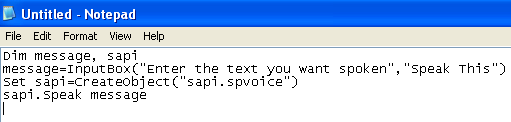
Step 1: Open Notepad and paste the following text into a new document

Dim message, sapi
message=InputBox("Enter the text you want spoken”,”Speak This")
Set sapi=CreateObject("sapi.spvoice")
sapi.Speak message

It should basically look something like this:

make computer speak

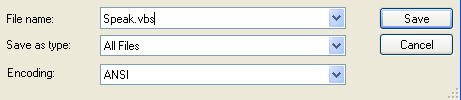
Now when you go to save the file, give it any name, but make sure you also type .VBS after the name. Also, for the Save as type box, choose All files instead of the default Text Documents.

make computer talk

Now double-click on the VBS file and you should see a input box where you can type in the text you want spoken! Go ahead and type something and click OK.

speak computer

That’s it! Your computer will speak to you in the default voice, which for me was some scary seductive male type of voice! What about yours ? 

Enjoy...
Read More
Unknown

1000+ Facebook Symbols for Cool & Attractive Status

Symbols can successful get your chats down and add some more attractive glittering to your updates, using symbols in your status can also express a big matter in a small update. Well we have a collection of 1000+ status updates continue updating everyday. Just copy symbols from below and paste it in your status update and chat stream.
  • Simple Ones :

☮ ✈ ♋ 웃 유 ☠ ☯ ♥ ✌ ✖ ☢ ☣ ☤ ⚜
❖ Σ ⊗ ♒ ♠ Ω ♤ ♣ ♧ ♡ ♦♢♔ ♕ ♚ ♛ ★ ☆ ✮ ✯ ☄ ☾ ☽ ☼ ☀ ☁ ☂ ☃ ☻
☺ ۞ ۩ ♬ ✄ ✂ ✆ ✉ ✦ ✧ ∞ ♂ ♀ ☿ ❤ ❥ ❦ ❧ ™ ® ©
✗ ✘ ⊗ ♒ ▢ ▲ △ ▼ ▽ ◆ ◇ ○ ◎ ● ◯ Δ ◕ ◔ ʊ ϟ ღ 回 ₪ ✓ ✔ ✕ ☥ ☦ ☧ ☨ ☩ ☪ ☫ ☬ ☭ ™©® ¿¡½⅓⅔¼¾ ⅛⅜⅝⅞ ℅№⇨ ❝❞ ∃∧∠ ∨∩⊂ ⊃∪⊥∀ ΞΓɐəɘεβ ɟɥɯɔи ɹʁ яʌʍλ ч ∞ Σ Π
⌥ ⌘ 文 ⑂
ஜ ๏

  • Amazing Smileys :

☹ ☺ ☻ ت ヅ ツ ッ シ Ü ϡ ﭢ

  • Copyright, registered trademark :

™ ℠ © ® ℗

  • Money - Currency symbols :

€ £ ¥ ¢ ƒ ₩

  • Blackboard bold (Double-struck) letters :

ℂ ℍ ℕ ℙ ℚ ℝ ℤ

  • Antique letter characters :

ℬ ℰ ℯ ℱ ℊ ℋ ℎ ℐ ℒ ℓ ℳ ℴ ℘ ℛ
ℭ ℮ ℌ ℑ ℜ ℨ

  • Triangles :

▲◣◢ ◥▼△▽ ⊿◤◥ △ ▴ ▵ ▶ ▷ ▸ ▹ ► ▻ ▼ ▽ ▾ ▿ ◀ ◁ ◂ ◃ ◄ ◅

  • Math's, Numbers Half, third, parts :

⅟½⅓¾⅔⅕⅖⅗⅘⅙⅚⅛⅜⅝⅞

  • Comparison signs :

≂ ≃ ≄ ≅ ≆ ≇ ≈ ≉ ≊ ≋ ≌ ≍ ≎ ≏ ≐ ≑ ≒ ≓ ≔ ≕ ≖ ≗ ≘ ≙ ≚ ≛ ≜ ≝ ≞ ≟ ≠ ≡ ≢ ≣ ≤ ≥ ≦ ≧ ≨ ≩ ⊰ ⊱ ⋛ ⋚

  • Integrals :

∫ ∬ ∭ ∮ ∯ ∰ ∱ ∲ ∳

  • Index / power numbers and letters :

⁰ ⁱ ⁲ ⁳ ⁴ ⁵ ⁶ ⁷ ⁸ ⁹ ⁺ ⁻ ⁼ ⁽ ⁾ ⁿ ₀ ₁ ₂ ₃ ₄ ₅ ₆ ₇ ₈ ₉ ₊ ₋ ₌ ₍ ₎ ₏
ᵀᴴᴱ'ᴼᴿᴵᴳᴵᴻᴬᴸ 
ᴬ ᴭ ᴮ ᴯ ᴰ ᴱ ᴲ ᴳ ᴴ ᴵ ᴶ ᴷ ᴸ ᴹ ᴺ ᴻ ᴼ ᴽ ᴾ ᴿ ᵀ ᵁ ᵂ ᵃ ᵄ ᵅ ᵆ ᵇ ᵈ ᵉ ᵊ ᵋ ᵌ ᵍ ᵎ ᵏ ᵐ ᵑ ᵒ ᵓ ᵔ ᵕ ᵖ ᵗ ᵘ ᵙ ᵚ ᵛ ᵜ ᵝ ᵞ ᵟ ᵠ ᵡ ᶛ ᶜ ᶝ ᶞ ᶟ ᶠ ᶡ ᶢ ᶣ ᶤ ᶥ ᶦ ᶧ ᶨ ᶩ ᶪ ᶫ ᶬ ᶭ ᶮ ᶯ ᶰ ᶱ ᶲ ᶳ ᶴ ᶵ ᶶ ᶷ ᶸ ᶹ ᶺ ᶻ ᶼ ᶽ ᶾ ᶿ
ₐ ₑ ₒ ₓ ₔ ᵢ ᵣ ᵤ ᵥ

  • Roman numerals :

Ⅰ Ⅱ Ⅲ Ⅳ Ⅴ Ⅵ Ⅶ Ⅷ Ⅸ Ⅹ Ⅺ Ⅻ Ⅼ Ⅽ Ⅾ Ⅿ ⅰ ⅱ ⅲ ⅳ ⅴ ⅵ ⅶ ⅷ
ⅸ ⅹ ⅺ ⅻ ⅼ ⅽ ⅾ ⅿ

  • Circled (bubble) Numbers :

➀➁➂➃➄➅➆➇➈➉
➊➋➌➍➎➏➐➑➒➓

  • Alphabet letters :

ⒶⒷⒸⒹⒺⒻ ⒼⒽ ⒾⒿⓀ ⓁⓂⓃ ⓄⓅⓆ ⓇⓈⓉ ⓊⓋⓌⓍⓎⓏ
ⓐⓑⓒⓓⓔⓕⓖⓗ ⓘⓙⓚⓛⓜⓝ ⓞⓟⓠⓡⓢⓣ ⓤⓥⓦⓧⓨⓩ

  • Foreign characters :

ಐ ಓ ಔ ಕ ಖ ಗ ಘ ಙ ಝ ಞ ಲ ಶ ಹ ೀ ಾ ಿ ಧಿ ೈ ೋ ೌ ೬ ೂ ೄ ભ મ ય ર લ ળ વ શ ષ સ હ ઼ ઽ ા િ ી ુ ૂ ૃ ૄ ૅ ે ૈ ૉ ો ૌ ્ড ঢ ণ ত থ দ ধ ন প ফ ব ভ ম য র ল শ ষ স ঁ ং ঃ অ আ ই ঈ উ ঊ ঋ ঌ এ ঐ ও ঔ ক খ গহ

  • Chinese/Asian signs :

㌹ - ㍭ - 頹 - 衙 - 浳 - 浤 - 搰 - 煤 - 洳 - 橱 - 橱 - 煪 - ㍱ - 煱 - 둻 - 睤 - 楤 - ぱ - - 椹 - ぱ - ㍵ - 畱 - 煵 - 田 - つ - 煵 - 엌 - 嫠 - 쯦 - 案 - 迎 - 是 - 從 - 事 - 網 - 頁 - 設 - 計 - 簡 - 大

  • Chess :

♚ ♛ ♜ ♝ ♞ ♟
♔ ♕ ♖ ♗ ♘ ♙

  • Hands :

☚ ☛ ☜ ☝ ☞ ☟ ✌

  • Cross :

☩ ☨ ☦ ✙ ✚ ✛ ✜ ✝ ✞ ✠

  • Snow/Star :

⋆ ✢ ✣ ✤ ✥ ✦ ✧ ✩ ✪ ✫ ✬ ✭ ✮ ✯ ✰ ★ ✱ ✲ ✳ ✴ ✵ ✶ ✷ ✸ ✹ ✺ ✻ ✼ ❄ ❅ ❆ ❇ ❈ ❉ ❊ ❋ ╰☆╮ ✡ ❂ -‘๑’-

  • Flower :

✽ ✾ ✿ ❀ ❁ ❃ ❋

  • Music :

♪ ♫ ♩ ♬ ♭ ♮ ♯ ° ø

  • Weather: sun, rain, snow, temperature :

☼ ☀ ☁ ☂ ☃ ☄ ☾ ☽ ❄ ☇ ☈ ⊙ ☉ ℃ ℉ ° ❅ ✺ ϟ

  • Beliefs :

☪ ✌ ☮ ♆ 卐

  • Religious :

✡ † ☨ ✞ ✝ ☥ ☦ ☓ ♁ ☩

  • Political :

Ⓐ ☭ ✯

  • Gender, love, heart :

♥ ❤ ❥ ❣ ❦ ❧ ♡
♋ ♂ ♀ ☿ 웃 유
ღ ۵

  • Text-message, Write :

✉ ✍ ✎ ✏ ✐✑✒ ⌨

  • Checked :

☑ ✓ ✔ √

  • X, No/Unchecked, band aid :

☐ ☒ ☓ ✕ ✖ ✗ ✘ ✇

  • Percent :

% ℅ ‰ ‱

  • Push pin :

☌

  • Escape, delete, sub, country shortcuts :

␛ ␡ ␚
␟ ␘ ␠ ␤ ␋ ␌ ␍ ␎ ␏ ␐ ␑ ␒ ␓ ␔ ␕ ␖ ␗ ␙ ␜ ␝ ␞

  • Corners :

┌ ┍ ┎ ┏ ┐ ┑ ┒ ┓ └ ┕ ┖ ┗ ┘ ┙ ┚ ┛ ├ ┝ ┞ ┟ ┠ ┡ ┢ ┣ ┤ ┥ ┦ ┧ ┨ ┩ ┪ ┫ ┬ ┭ ┮ ┯ ┰ ┱ ┲ ┳ ┴ ┵ ┶ ┷ ┸ ┹ ┺ ┻ ┼ ┽ ┾ ┿ ╀ ╁ ╂ ╃ ╄ ╅ ╆ ╇ ╈ ╉ ╊ ╋ ╌ ╍ ╎ ╏ ═ ║ ╒ ╓ ╔ ╕ ╖ ╗ ╘ ╙ ╚ ╛ ╜ ╝ ╞ ╟ ╠ ╡ ╢ ╣ ╤ ╥ ╦ ╧ ╨ ╩ ╪ ╫ ╬

  • Blocks, box :

❏ ❐ ❑ ❒ ▀ ▁ ▂ ▃ ▄ ▅ ▆ ▇ ▉ ▊ ▋ █ ▌ ▍ ▎ ▏ ▐ ░ ▒ ▓ ▔ ▕ ▖ ▗ ▝▝ ▘ ▞ ▚ ▙ ▟ ▛ ▜
■ □ ▢ ▣ ▤ ▥ ▦ ▧ ▨ ▩ ▪ ▫ ▬ ▭ ▮ ▯ ☰ ☲ ☱ ☴ ☵ ☶ ☳ ☷   

  • Chinese symbols :

頹 - 衙 - 浳 - 浤 - 搰 - ㍭ - 煤 - 洳 - 橱 - 橱 - 煪 - ㍱ - 煱 - 둻 - 睤 - ㌹ - 楤 - ぱ - - 椹 - ぱ - ㍵ - 畱 - 煵 - 田 - つ - 煵 - 엌 - 嫠 - 쯦 - 案 - 迎 - 是 - 從 - 事 - 網 - 頁 - 設 - 計 - 簡 - 大

  • Scissors :

✁ ✂ ✃ ✄

  • Telephone :

✆ ☎ ☏

  • Quotes :

❝❞ «» ‶ ‷‴ ‹ › 〈 〉 ‸^ ′ ″ ‵ ‘ ’ ‚ ‛ “ ” „ ‟

  • Time :

⌚ ⌛

  • Round objects, circles :

❂ ○ ◎ ● ◯ ◕ ◔ ◐ ◑ ☢ ⊗ ⊙ ◘ ◙ ◍

  • Question, exclamation marks :

❢ ❣ ⁇ ⁈ ⁉ ‼ ‽ ! !
♥℘.s. Æ ℓ٥ﻻ ﻉ√٥υ♥

Source : www.hackinguniversity.in
Read More

Friday, 24 August 2012

Unknown

Transfer Data to Your Android Device without any Cable

Software Data Cable for Android simply lets you enjoy your Android Device transfers wirelessly. It simply installs on your device as a normal app and than gives you an ip address and a port number which you can insert in your browser URL field and than it will simply display all the contents of your media card right in your browsers screen from where you can simply transfer any kind of stuff.

software data cabel android

How to use Software Data Cable :

If you are interested in this app than you can get it From Here and after you have installed on your device simply fire it up and you will be given a simply IP Address and a Port Number just enter that in your browser URL field as instructed in the app and that it you will have the whole interface right in front of you.

Now just enjoy transferring media wirelessly and have fun :)
Read More
Unknown

Protect Your Android Device with Free Avast Antivirus

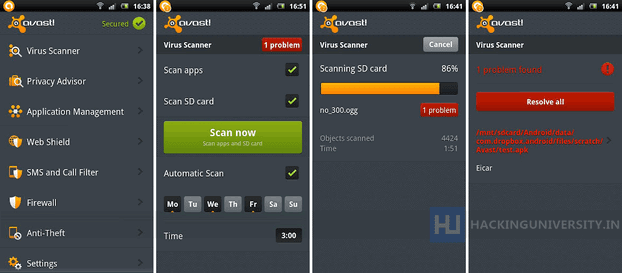
Avast the big name in Antivirus world has released their Android app taking one step further in the world of malicious viruses which can ruin your device making it slow and buggy and hence sniffing stuff from your phone. Well in regular day you transfer stuff, use Bluetooth and download media files from internet and many of those files contain viruses so getting a Antivirus on your device will protect you from any kind of threat and will maintain your device as fast as possible.

Avast antivirus app android

Key Features of Avast Antivirus :

1. Improved Virus Scanner.
2. Privacy Reporter.
3. Application Manager.
4. Enhanced Firewall.
5. Anti-Theft System.
6. SMS and Call Filtering Option.


 Downloading and Installing :

You can download Avast Antivirus from Android Market Here its totally free and can be downloaded right from your Android device just visit the above link on your device and than click on Install, now run it and update it after successful update just scan your device for harmful viruses.
Read More
Unknown

12 Secure Tips to Maintain a Safe Virus Free Computer

If you enjoy using your computer than you have to be aware about some modern tactics for getting your pc down and injecting some viruses and malwares and making its actions stubborn. Well there are always some ways you should adopt to make your pc virus free and enjoy and safe browsing and gaming environment. Well below are the 12 tips that you should follow to maintain your pc from viruses.
computer virus
  1. Spam Emails : emails are the most common means of communications between any big firm or any small business. Quotations, agreements and other business letters are usually delivered using emails, but this side by side gives birth to spam emails, fraud winning tickets and much more that contains viruses and malwares that usually get injected into your pc and makes annoying problems, so make sure to check email only from your inbox and not from the spam junk. 
  2. USB Pen Drives : the second major way of virus spreading is the USB thumb drives, that take viruses from one computer and spread them in another one. So make sure to have a good scan before you open that drive in your pc.
  3. MS Outlook Email Client : it has been reported that MS-Outlook is much more susceptible to worms, so make to have a good antivirus program installed or the best option is too use Thunderbird or online Gmail accounts.
  4. Online Pop-Ups : while browsing internet you might come to a low quality website using some mysterious popups saying you have won 1 million dollars click to claim the cash, well those are just fake popups and should not be clicked as they might have something suspicious and can be spread in your computer. You can install a good pop-up blocking software to stay safe.
  5. Malicious Websites : google is the biggest search engine so it indexes every website and tries to remove some malicious websites automatically but still some website get bypassed and can be harmful when visited well the simple solution is too install a good link scanner you can go for the AVG Link Scanner free tool and install it now.
  6. Good Antivirus Software : obviously who can leave or forget this point, a good antivirus program is the soul of your pc, make sure you buy a good one I would surely recommend going with Bitdefender or Kaspersky but still you do not want to invest in any paid program that you can go for AVG Free Edition.
  7. Good Anti-Spyware Program : also install a good anti-spyware program to stay safe from spywares and malwares.
  8. Email Attachments : maybe the email is trusted and gets delivered to your inbox but still its attachments can be harmful for your pc and should not be opened if any antivirus program warns you out it can be seriously harmful.
  9. Using External Drives : same rule applied for this one as for the USB thumb drive, so make sure to give it a wonderful scan before you get your hands on it.
  10. Upgrade Windows Periodically : windows always asks you to update, but many people ignore that update but you should seriously go for that update as that update can fix up some patches and security loop holes.
  11. Downloading Files : this is normal and regular task every individual carries out, so make sure to give a virus scan before you run that file.
  12. Visiting Illegal Websites : do not visit any website that’s providing serials, cracks and patches in bulk they can be too harmful.
Read More

Wednesday, 22 August 2012

Unknown

How To Unlock Huawei e1732 idea Net Setter Modem (Free Permanent solution)

Few months back idea has launched 3g huawei usb modem which is having max speed of 7.2mbps but main problem was it can be unlocked using firmware upgrade or downgrade because its having customized firmware so our team was working on it from few months. last week we have also written the article which is on unlock e1732 using dc unlocker but main drawback was its not free it require some credits but finally i am here with a permanent solution for E1732 which is totally free so go ahead and unlock your E1732 which is locked from last 5 months.
Requirements :-
  1. CDMA Workshop (Download It From This Link)
  2. E1732 Downgrader (Download It From This Link)
Steps you have to Follow

  • First of all download all requirements (you may need to disable your antivirus)
  • Plug your E1732 with any other operator sim and let it install its driver
  • Now just Right click on your MY COMPUTER ICON >> PROPERTIES >> DEVICE MANAGER >>Ports (COM & LPT) then you can see there something like HUAWEI Mobile Connect – 3G Application Interface (COM8) then com8 is your systems port number please note the port number
  • Now Run CDMA WOrkshop.Exe and  Click on Main and select the com port number in COM Settings (AT mode)box. Select Com Port
  • Then You have to click on Connect
    1. Connect CDMA Workshop
  • Then Click On Read and Let it read your modem information and you can see your modem information on left panel.
    2. Read Flash
  • Now Click on Security Tab >> Spc >> Default (nv_read) as SPC and Type 000000 in blank box and click on Spc and you can see the pop up window click on SEND.
    3. Send SPC as Default
  • Now Just Navigate to Memory Tab >> NV Items >> And Click On Read you can see on pop up box now click on OK.
  • Now you can see onw NV Backup Box now in Last NV Item box type 9999 and click on ok and save it with any name. and it will backup your data let it be complete to 100% . and minimize CDMA Work Shop
    Write NV Items
  • Now Run E1732 Downgreder >> Accept Terms and Conation >> Then Click On Next and it will read your modem let it be finish then it will show your modem data then click on Start.
  • In the process you will get massage like update failure after downloading program. then dont worry and click on OK.
  • Then Again Come on CDMA Workshop and come on Main Tab and click on Disconnect and unplug your modem
  • Now Again Plug your modem and Run CDMA Workshop and check and select Com port as pr we have done previously
  • Then come on CDMA wokrshop and Select Com Port and click on Connect and navigate to Memory Tab >> NV ITEMS >> Click On Write >> now you can see one confirm box click on OK. then Click on Open then borwse and select the file which we have saved before
    Write NV Items
  • When the process will reach at 100% you can see success message then click on OK and From Main Tab Disconnect your modem and you are Done.

if you have any problem doing this you can comment...
Read More